
Last week I finally went to Best Buy and bought a VGA adapter for my iPad. Since the iPad I have is an iPad 2, I had to buy the 30-pin to VGA adapter (this is a different adapter than what you need for the newer ones). It's a very short cord, but it's not as much of a disaster as you might think.
In order to hook it up to my Smartboard, I need to disconnect the Smartboard from the back of my computer and plug is into the big end of the adapter. Then, the smaller end obviously hooks up to the iPad. Then, the iPad screen will project onto the Smartboard and it will also show on the computer screen. This does NOT allow me to control the iPad on the Smartboard. The only way I'd be able to do that is if I had a wireless set-up with my computer. The computer and iPad would have to sync via a special app downloaded onto both. Since my computer does not have wireless, I can't be set up that way.
Regardless, I'm happy that it can be projected onto the Smartboard for everyone to see. Now this means I can hopefully start using it during instruction. It's a bit of a pain to have to plug and unplug stuff from my computer, but I'll live with it for now until I can get a splitter box.
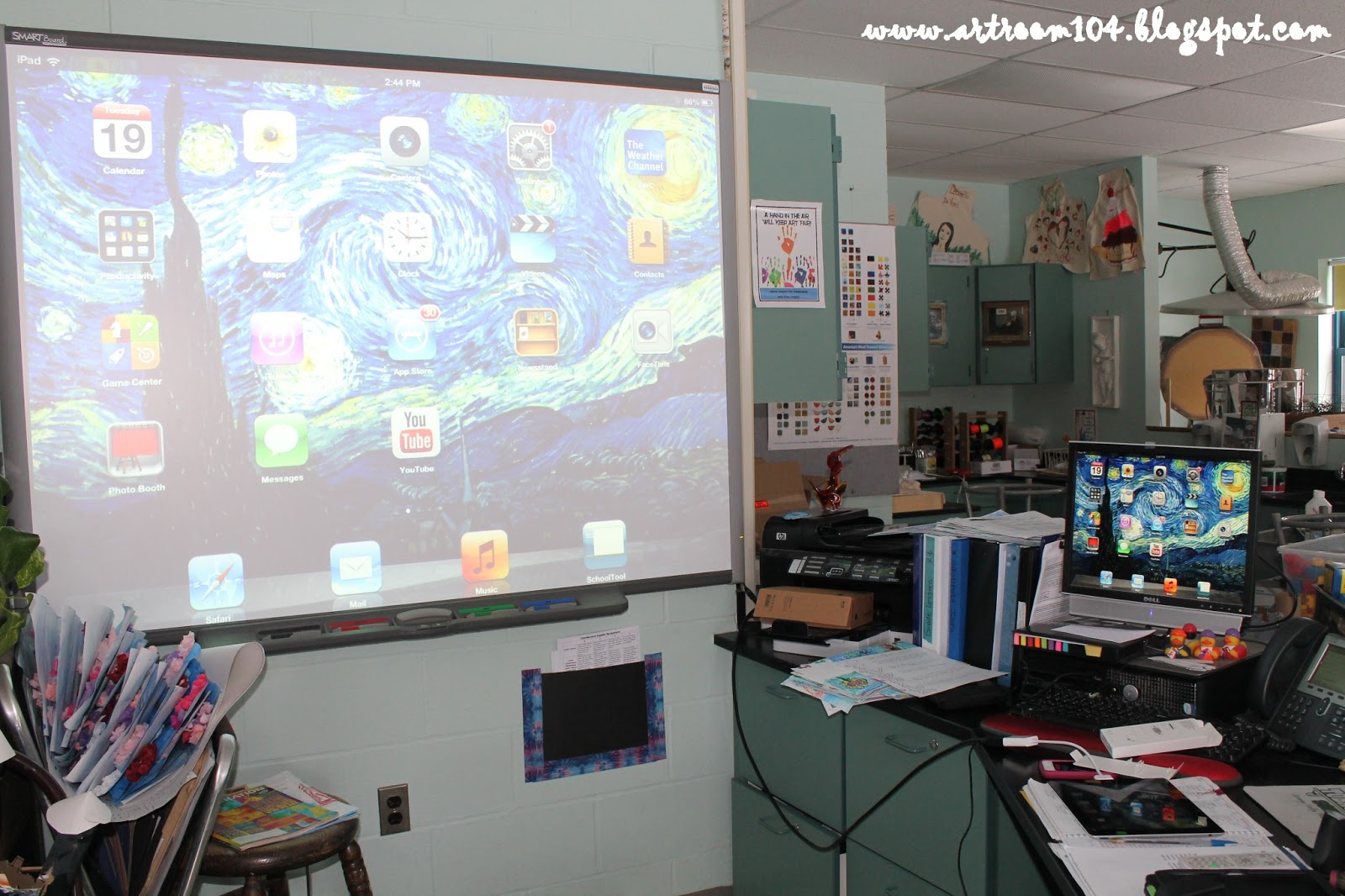

I've downloaded a few cool apps that I can't wait to try. Some of these are apps that I downloaded that are a one-player app that would work well in a classroom that has access to multiple iPads. Some seem like they'll be good apps for instruction
1. Pottery
 I LOVE playing this app at home! This is a one-player app, but if you had multiple iPads, it would be cool to have a competition to see who could make and sell the most expensive piece of pottery! There is a free version of the app, but I ended up paying the $5.99 for the full version. You can free-throw pottery or you can play the game and make pottery for the commissions you receive.
This app is a cool app, especially if you are doing pop art! You take a photo of yourself, or someone else, and you can alter it using lots of different effects, including the pop art effect, which makes your photo turn into an Andy Warhol inspired artwork! I think that I will be using this with my 4th graders as we finish up the portrait unit.
3. Art HD
 This app is pretty cool for information. If you wanted your students to research artists, this would be a great source to use. The app comes with 15 artists on it, including Van Gogh, Monet, Rembrandt, Sargent, Turner, Rivera, Franz Marc, Klimt Frida Kahlo, Homer, Gauguin, Degas, Da Vinci, Cezanne and Bouguereau. There is a write-up powered by Wikipedia and a huge gallery of artwork by each artist. When I was in college, Wikipedia was deemed a place that was not a good place for sources...has that changed now? Do you accept Wikipedia as a source in the Elementary and/or high school level?
This app is really cool. It would be great for instruction before visiting an actual art gallery. This isn't an actual representation of a real art gallery. There are rooms of famous paintings (and lots of Van Gogh's). You use the two screen buttons to "walk" through the gallery. When you get up close to a painting, you can click on it and it will give you some information about the artist and the artwork.
This app is pretty cool. It gives you a timeline of artists from about 1300-the 1980's. You can click on the artists to see a short biography and a short series of artworks by the artist. The layout is nice for visual learners because you actually scroll a long a timeline to see the artists in order that they created art.
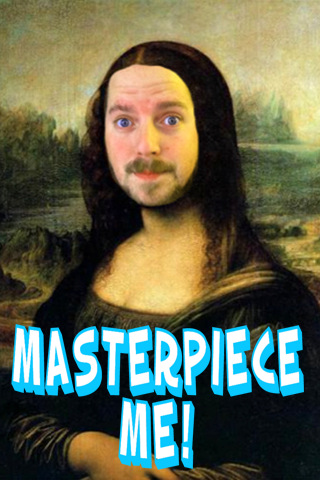
6. Masterpiece! This is a fun app that has a series of 16 paintings. Eight are for girls, eight for boys. You photograph yourself with the iPad and then maneuver your face into the cutouts of the paintings. Some include American Gothic, a self-portrait by Van Gogh, and the Mona Lisa.
7. Van Gogh and the Sunflowers
You can purchase this book as an app. The app will read the story page by page with some nice moving illustrations. I haven't downloaded the full version yet to know if it comes with more. It is kind of funny though, because the reader pronounces VanGogh's name "Van Goff".
 8. Van Gogh
This app, powered by Timeline, is a nice Van Gogh app. You can take tours of VanGogh (you can do a walk-thru of each time period in his life or through his self-portraits). It also has a short overview of VanGogh.
9. Art History (Lite)
I downloaded the lite version of this powered by Virtual Flashcards. This app has various cultures in history, such as Ancient Greece, Rome, Byzantine, etc. There are 1-2 artworks that come with the app per category. You can choose which categories to be "tested" on and then the app will run through the flash cards for you. I haven't played with it too much but I believe you can add your own categories and artworks to the app. If you get any cards wrong, you can "study" them. There isn't any information that accompanies the cards...that's the only downfall.
This app is pretty cool and would be great for use in a classroom that has multiple apps. I haven't paid for the full version so it is a little limited. In this app, there are presets for the ears, eyes, face, mouth etc. This would be great for a cartooning unit. Students could observe each other and then go through the app to pick the pre-sets that best match their partner's features and essentially, create a digital caricature!
Well, that's what I have to share for now. I'm finally just starting to dive into all of the art apps I downloaded. I went on a downloading spree and now I'm going through them and deciding which ones are keepers and which ones are not.


